Menus
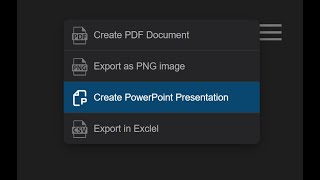

Use built-in menus to quickly access actions like adding, editing, or removing nodes, making chart management fast and intuitive.
OrgChart React has these menus
- menu – top right corner
- nodeMenu – button inside the node
- nodeContextMenu – right-click menu
menu
This is the main (hamburger) menu of the chart.
javascript
menu={{
  pdf_export: { text: "Export PDF" },
  png_export: { text: "Export PNG" },
  svg_export: { text: "Export SVG" },
  csv_export: { text: "Export CSV" },
  pp_preview: { text: "Create PowerPoint Presentation" },
  pp_export: { text: "Export to PowerPoint" }
}}Predefined menu items
(Same as controls)
- svg_export – Export to SVG
- pdf_export – Export to PDF
- png_export – Export to PNG
- visio_export – Export to Visio (VSDX)
- pp_export – Export to PowerPoint (PPTX)
- pp_preview – PPTX preview
- pdf_preview – PDF preview
- svg_preview – SVG preview
- png_preview – PNG preview
- csv_export – Export to CSV
- xml_export – Export to XML
- json_export – Export to JSON
- fit – Fit chart to screen
- expand_all – Expand all nodes
- full_screen – Toggle fullscreen
- zoom_in – Zoom in
- zoom_out – Zoom out
- layout_mixed – Mixed layout
- layout_normal – Normal layout
- layout_right_offset – Right offset layout
- layout_left_offset – Left offset layout
- layout_tree – Tree layout
- layout_grid – Grid layout
Node Menu
This menu opens from the node button.
javascript
nodeMenu={{
  details: { text: "Details" },
  edit: { text: "Edit" },
  add: { text: "Add" },
  remove: { text: "Remove" }
}}
Node Context Menu
Opens on right-click.
javascript
nodeContextMenu={{
  edit: { text: "Edit" },
  add: { text: "Add" }
}}Predefined nodeMenu (context/circle) items
- add - add a node
- remove - remove the node
- edit - edit the node
- details - open details for the node
- svg_export – Export to SVG
- pdf_export – Export to PDF
- png_export – Export to PNG
- visio_export – Export to Visio (VSDX)
- pp_export – Export to PowerPoint (PPTX)
- pp_preview – PPTX preview
- pdf_preview – PDF preview
- svg_preview – SVG preview
- png_preview – PNG preview
- csv_export – Export to CSV
- xml_export – Export to XML
- json_export – Export to JSON
- expand_all – Expand all nodes
Node Menu Devider
Use devider: true to render a divider after a menu item.
javascript
nodeMenu={{
    add: { text: "Add new" },
    details: { text: "Details", devider: true }
}},
Node Menu Width
Set a minimum width for the node menu:
css
div.boc-menu {
    min-width: 300px;
}
If the menu contains longer text that exceeds 300px, the width automatically expands to fit the content.
If you want the menu width to always remain 300px, even when the content is longer, use:
css
div.boc-menu {
    width: 300px;
}
Node Menu Submenu
Use subMenu to create nested menu levels inside a node menu item.
javascript
nodeMenu={{
    exports: {
        text: "Save as",
        subMenu: {
            pdf: { text: "PDF" },
            png: { text: "PNG" },
            aaa: {
                text: "AAA",
                subMenu: {
                    bbb: { text: "BBB" },
                    ccc: {
                        text: "CCC",
                        subMenu: {
                            add: { text: "Add new" }
                        }
                    }
                }
            }
        }
    }
}},Custom node menu item
javascript
let webcallMeIcon = `<svg width="24" height="24">...</svg>`;javascript
nodeMenu={{
  call: {
      text: "Call now",
      icon: webcallMeIcon,
      onClick: () => callHandler()
  }
}}
javascript
function callHandler(nodeId?: number) {
    var nodeData = chartRef.current?.get(nodeId??0);
    var employeeName = nodeData?.["name"];
    window.open('https://webcall.me/' + employeeName, employeeName, 'width=340px, height=670px, top=50px, left=50px');
}Override node menu
javascript
nodeMenu={{
  csv_export: {
      text: "Export to CSV"
  }
}}
javascript
tags={{
  overrideMenu: {
    nodeMenu: {
        add: { text: "Add New" }
    }
  }
}}
javascript
{ id: 2, pid: 1, tags: ["overrideMenu"] }